
Reglas de escalamiento
Algunas conversaciones no deberían ser gestionadas por IA. El sistema de escalamiento las enruta a la persona correcta.
Cómo funciona el escalamiento
Sección titulada «Cómo funciona el escalamiento»El agente evalúa cada correo y determina si se necesita escalar. Cuando se activa, el correo se reenvía a tu contacto designado con contexto completo y el borrador sugerido del agente.
Gestionar tipos de escalamiento
Sección titulada «Gestionar tipos de escalamiento»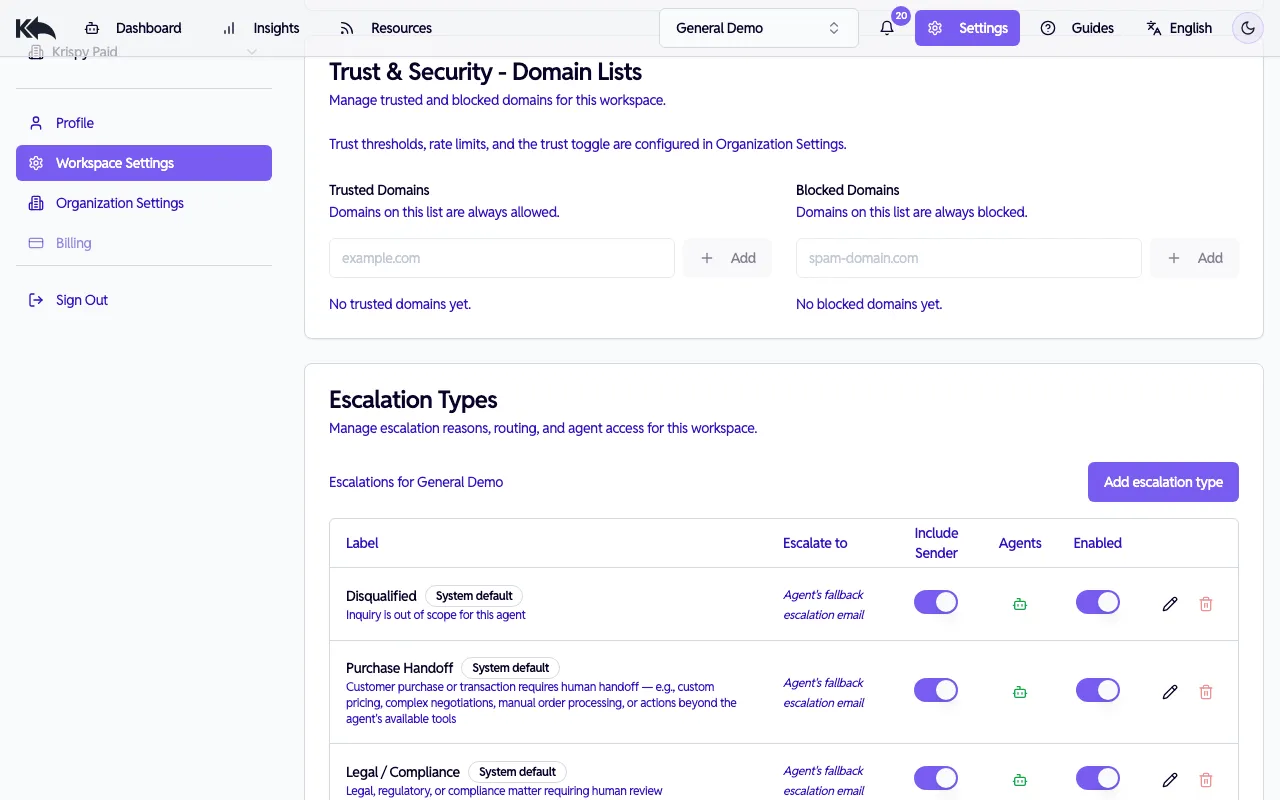
Ve a Settings > Workspace Settings > Escalation Types para ver y administrar todas las reglas de escalamiento.
Cada tipo de escalamiento tiene:
| Ajuste | Descripción |
|---|---|
| Label | Nombre que aparece en reportes (por ejemplo, “Legal Request”) |
| Definition | Descripción opcional de qué dispara este tipo |
| Routing Email | Dónde reenviar (opcional; si no, usa el correo de escalamiento del agente) |
| Notify Sender | Si se notifica al cliente que su mensaje fue escalado |
| Enabled | Activar/desactivar |
Crear un tipo personalizado
Sección titulada «Crear un tipo personalizado»Los tipos de escalamiento personalizados están disponibles en planes Pro, Premium y Enterprise. Los planes Free y Starter solo usan tipos integrados.
- Haz clic en Add Escalation Type
- Ingresa una etiqueta visible
- Opcionalmente agrega definición y correo de enrutamiento
- Elige si quieres notificar al remitente
- Haz clic en Save
Ejemplos de tipos personalizados:
- “Wholesale inquiry” → enrutar al equipo mayorista
- “Feature request” → enrutar a gestión de producto
- “VIP customer” → enrutar a un account manager senior
- “Refund over $100” → enrutar a un aprobador de finanzas
Vinculación con agentes
Sección titulada «Vinculación con agentes»Cada tipo de escalamiento puede aplicarse a:
- All agentes (indicador verde)
- Specific agentes (indicador amarillo)
- No agentes (indicador rojo)
Haz clic en el ícono de alcance para elegir qué agentes usan cada tipo.
Tipos integrados
Sección titulada «Tipos integrados»Know Reply incluye tipos de escalamiento comunes que no se pueden eliminar:
- Disqualified - Consulta fuera de alcance para este agente
- Purchase handoff - Señales de compra de alta intención
- Legal / compliance - GDPR, eliminación de datos, temas legales
- Complaints - Clientes molestos o insatisfechos
- Urgent requests - Incidencias sensibles al tiempo
- Capability gaps - El agente no sabe la respuesta
- Technical issues - Bugs, errores, problemas del sistema
- Manager feedback required - Casos que requieren revisión de manager
Puedes desactivar cualquiera de ellos, pero no eliminarlos.
Enrutar a distintas personas
Sección titulada «Enrutar a distintas personas»Enruta distintos tipos a equipos distintos:
- Solicitudes legales →
legal@company.com - Consultas de compra →
sales@company.com - Quejas →
support-manager@company.com
Si no hay correo de enrutamiento configurado, el escalamiento se envía al correo de escalamiento predeterminado del agente.
Qué ve el destinatario
Sección titulada «Qué ve el destinatario»Cuando ocurre un escalamiento, el destinatario recibe:
- El correo original del cliente
- El hilo completo de conversación
- El borrador sugerido por el agente
- El motivo del escalamiento
Esto le da todo lo necesario para continuar la conversación.
Salvaguardas automáticas
Sección titulada «Salvaguardas automáticas»Detección de bucles
Sección titulada «Detección de bucles»Si un mismo remitente envía muchos mensajes en poco tiempo, el sistema lo marca como posible bucle y escala automáticamente.
Retenciones por confianza
Sección titulada «Retenciones por confianza»Los correos de remitentes sospechosos (autenticación fallida, dominios desconocidos) se retienen para revisión en lugar de procesarse por el agente. Consulta Confianza y seguridad del remitente para más detalles sobre trust score, bloqueo/desbloqueo de remitentes y gestión de correos en cuarentena.