
Adding Integrations
Without integrations, your agent can only respond with knowledge base content. Connect your tools and it can look up live data, make changes, and resolve issues directly.
Available integrations
Section titled “Available integrations”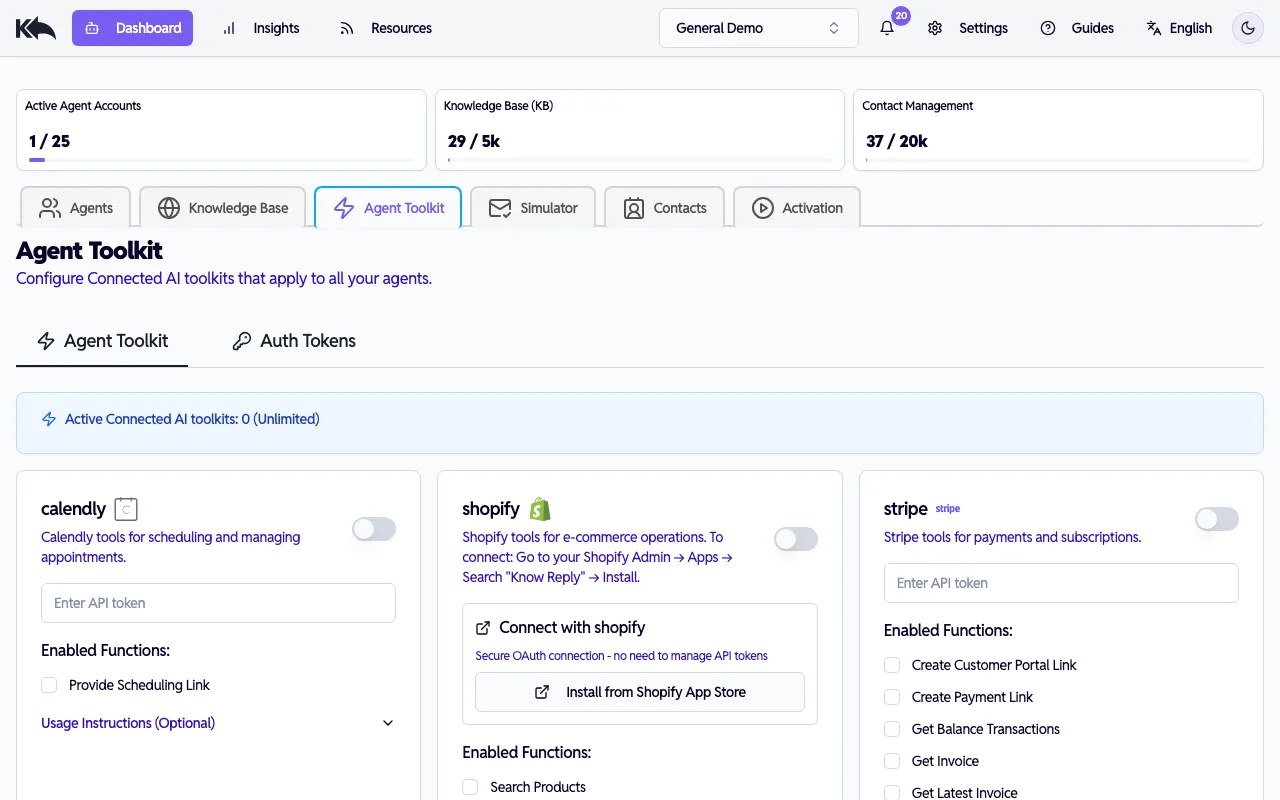
- Shopify - Order status, product details, customer history, returns
- Stripe - Payment status, invoices, charges, refunds
- Zendesk - Help Center search, support ticket management
- WooCommerce - Products, orders, fulfillment tracking
- Calendly - Scheduling, rescheduling, cancellations
- HubSpot - CRM contact lookups and creation
- Klaviyo - Mailing list management
- Mailchimp - Subscriber management
Each integration has a detailed setup guide with step-by-step instructions for finding and entering your API credentials. More integrations are added regularly.
Connecting an integration
Section titled “Connecting an integration”- Go to Dashboard > Toolkit
- Find the tool you want to connect
- Choose your authentication method:
- OAuth (recommended) - Click Connect Now and authorize in the popup
- API Key - Enter your key and click Connect Now
- Once connected, you’ll see a green indicator
Configuring capabilities
Section titled “Configuring capabilities”After connecting, you’ll see a list of functions the integration can perform. Each function has a checkbox to enable or disable it.
For example, Shopify might show:
- Look up order status ✓
- Get customer details ✓
- Process refund ✓
- Update order ☐
Enable only the capabilities you want your agent to use.
Usage instructions
Section titled “Usage instructions”Each integration has an optional Usage Instructions field (up to 1,000 characters) where you can guide when and how the agent uses it.
Examples:
- “Only look up orders if the customer provides an order number or email”
- “Don’t process refunds over $100 without escalating first”
- “Always check subscription status before answering billing questions”
Leave this empty to use default behavior—the agent will decide when to use each tool based on conversation context.
How it works
Section titled “How it works”When drafting a reply, your agent can call connected tools to get real data:
- Customer asks “where is my order?” → Agent checks Shopify, finds tracking, includes it in reply
- Customer asks about a charge → Agent checks Stripe, finds invoice, explains it
- Customer wants to reschedule → Agent checks Calendly, offers available times
Monitoring usage
Section titled “Monitoring usage”Go to Insights > Toolkit to see:
- Which integrations are being used
- Success and error rates
- Response times
- Error details for troubleshooting
Disconnecting
Section titled “Disconnecting”To disconnect an integration, go to its settings and click Disconnect. The agent will no longer have access to that tool.