
エスカレーションルール
AIで処理すべきでない会話もあります。エスカレーションシステムは、それらを適切な担当者へルーティングします。
エスカレーションの仕組み
Section titled “エスカレーションの仕組み”エージェントは各メールを評価し、エスカレーションが必要か判断します。トリガーされると、メールは完全な文脈とエージェントの提案ドラフト付きで指定連絡先へ転送されます。
エスカレーションタイプの管理
Section titled “エスカレーションタイプの管理”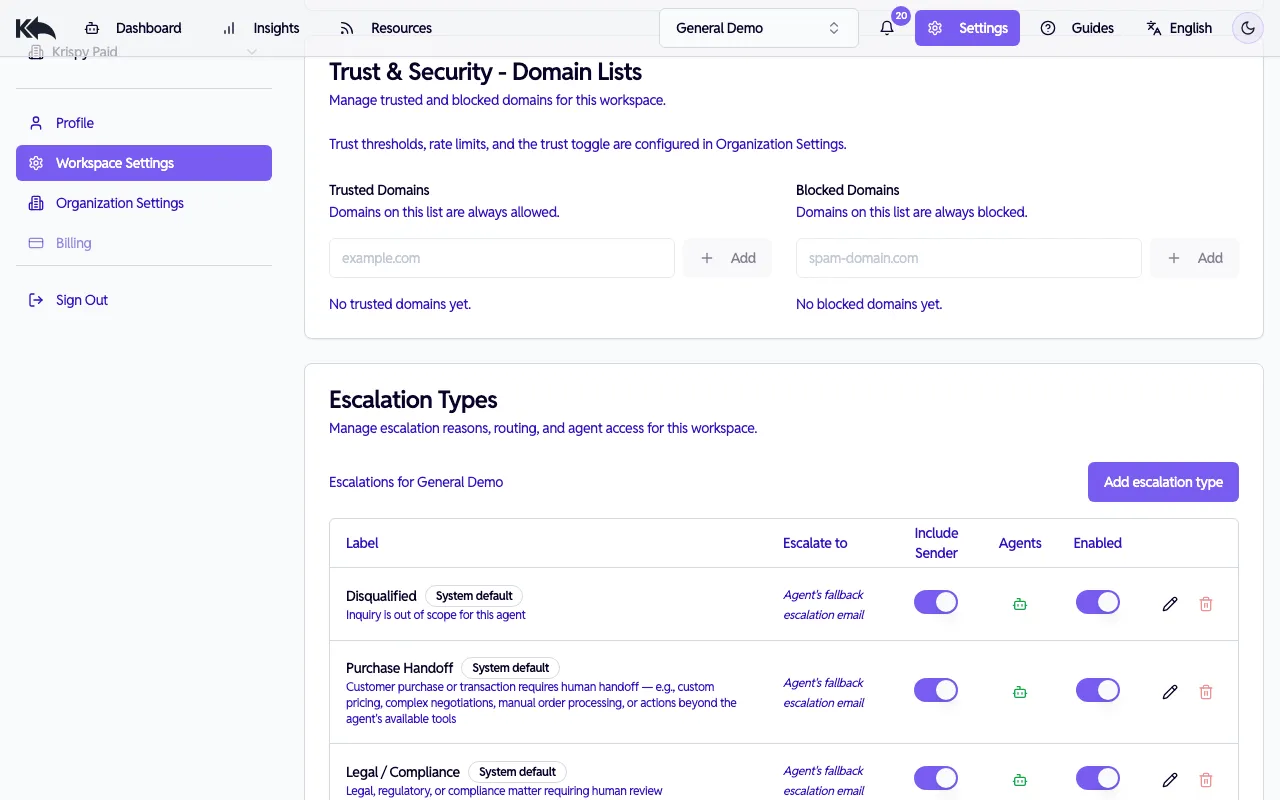
すべてのルールを確認・管理するには Settings > Workspace Settings > Escalation Types へ移動します。
各エスカレーションタイプには次があります:
| 設定 | 説明 |
|---|---|
| Label | レポート表示名(例: “Legal Request”) |
| Definition | このタイプの発火条件に関する任意説明 |
| Routing Email | 転送先(任意。未設定時はエージェントのエスカレーションメールへフォールバック) |
| Notify Sender | 顧客にエスカレーション通知するか |
| Enabled | オン/オフ切替 |
カスタムタイプ作成
Section titled “カスタムタイプ作成”カスタムエスカレーションタイプは Pro、Premium、Enterprise で利用できます。Free と Starter は組み込みタイプのみです。
- Add Escalation Type をクリック
- 表示ラベルを入力
- 必要に応じて定義とルーティングメールを追加
- 送信者通知の有無を選択
- Save をクリック
カスタムタイプ例:
- “Wholesale inquiry” → 卸売チームへルーティング
- “Feature request” → プロダクト管理へルーティング
- “VIP customer” → シニアアカウントマネージャーへルーティング
- “Refund over $100” → 財務承認者へルーティング
エージェントへの適用
Section titled “エージェントへの適用”各タイプは次の範囲で適用できます:
- All エージェント(緑インジケーター)
- Specific エージェント(黄インジケーター)
- No エージェント(赤インジケーター)
スコープアイコンをクリックして、どのエージェントで使うかを選択します。
組み込みタイプ
Section titled “組み込みタイプ”Know Reply には削除できない一般的なエスカレーションタイプが含まれます:
- Disqualified - このエージェントの対応範囲外
- Purchase handoff - 高い購買意図シグナル
- Legal / compliance - GDPR、データ削除、法務関連
- Complaints - 怒り・不満のある顧客
- Urgent requests - 緊急性の高い依頼
- Capability gaps - エージェントが回答不能
- Technical issues - バグ、エラー、システム問題
- Manager feedback required - マネージャー確認が必要なケース
これらは無効化できますが削除はできません。
人ごとに振り分ける
Section titled “人ごとに振り分ける”タイプごとに別チームへルーティングできます:
- 法務依頼 →
legal@company.com - 購買問い合わせ →
sales@company.com - 苦情 →
support-manager@company.com
ルーティングメール未設定時は、エージェントの既定エスカレーションメールへ送られます。
受信者が見る内容
Section titled “受信者が見る内容”エスカレーション発生時、受信者には次が届きます:
- 顧客の元メール
- 会話スレッド全体
- エージェントの提案返信ドラフト
- エスカレーション理由
引き継ぎに必要な情報がすべて揃います。
自動セーフガード
Section titled “自動セーフガード”同一送信者が短時間に多数メッセージを送ると、潜在ループとして自動エスカレーションされます。
trust 保留
Section titled “trust 保留”疑わしい送信者(認証失敗、未知ドメイン)からのメールは、エージェント処理ではなくレビュー保留になります。trust score の仕組み、送信者のブロック/解除、隔離メール管理の詳細は 送信者の信頼性と安全性 を参照してください。