
Team & Permissions
Know Reply uses a two-level hierarchy: Organizations contain Workspaces. This guide covers how to manage access at both levels.
Organizations and workspaces
Section titled “Organizations and workspaces”Organization
Section titled “Organization”The top-level entity where billing lives. An organization can contain multiple workspaces. Team members are invited at the org level.
Workspace
Section titled “Workspace”The working container where everything lives: agents, knowledge bases, email accounts, integrations, contacts, escalation rules. Workspaces are fully isolated from each other.
What’s isolated per workspace:
- Agents and their configurations
- Knowledge base content and embeddings
- Email accounts and inboxes
- Contacts and conversation history
- Integrations and tool connections
- Escalation rules and routing
- Analytics and reporting data
Nothing leaks between workspaces — each one is a completely separate environment.
Switching workspaces
Section titled “Switching workspaces”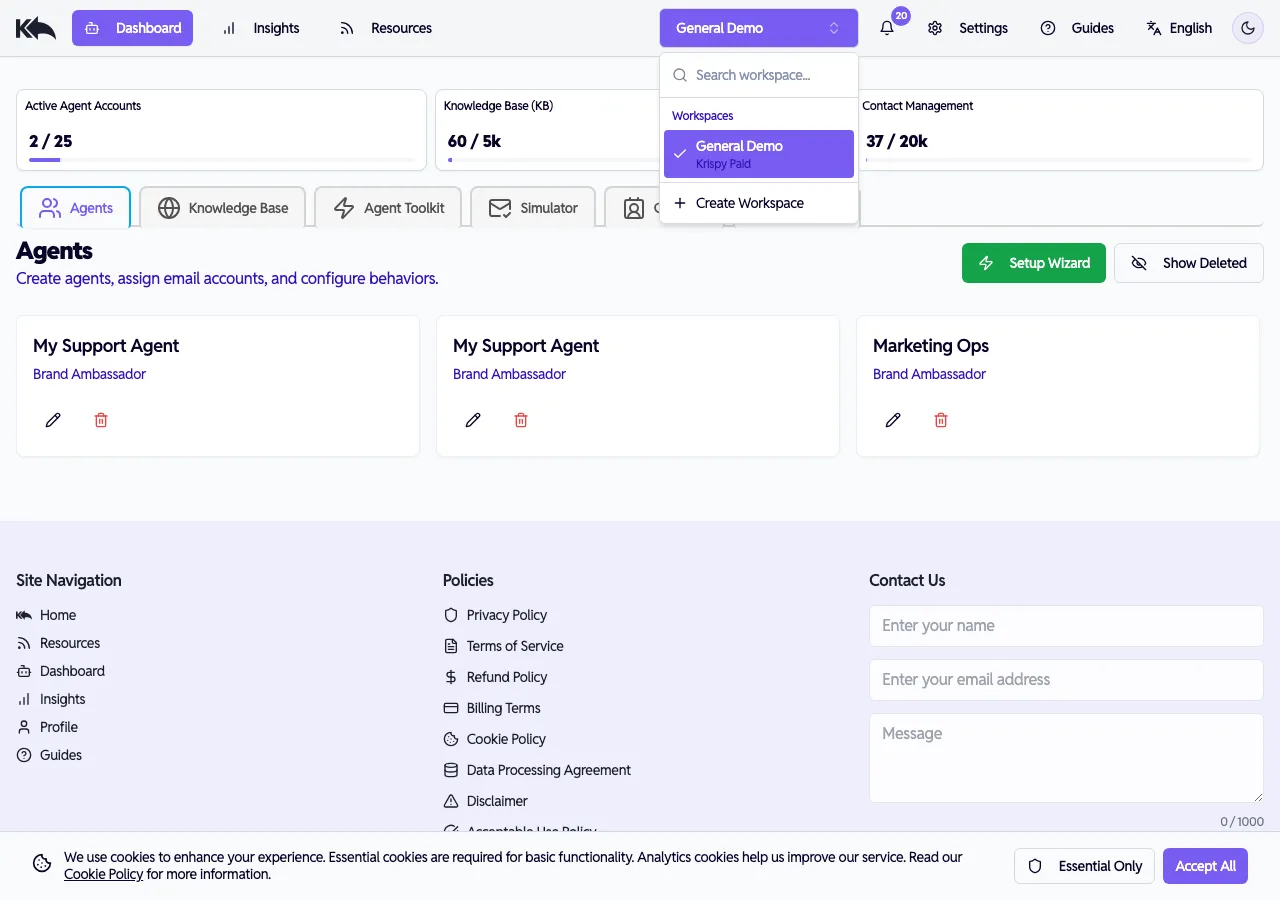
Click the workspace name in the header to switch between workspaces. The dropdown shows all workspaces in your organization with a search filter and a Create Workspace option.
Use cases:
- Agencies — One workspace per client. Each client’s data, agents, and knowledge are fully separated. Give clients Viewer access to their own workspace so they can see analytics without accessing other accounts. One organization, one bill.
- Multi-brand companies — Each brand gets its own workspace with independent agents, tone, and knowledge base. Your team can switch between workspaces from the header.
- Departments — Sales, support, and marketing each get their own workspace with tailored configurations and separate escalation routing.
Workspace availability by plan
Section titled “Workspace availability by plan”| Plan | Workspaces | Team members |
|---|---|---|
| Free | 1 | 1 |
| Starter | 1 | 1 |
| Pro | Multiple | Multiple |
| Premium | Multiple | Multiple |
| Enterprise | Multiple | Multiple |
Full control over the workspace and organization:
- Manage billing and subscription
- Delete workspace
- All admin and member capabilities
Management capabilities:
- Invite and remove team members
- Configure agents, integrations, knowledge base
- View all analytics and conversations
Member
Section titled “Member”Standard access:
- View analytics and dashboards
- Test agents in the simulator
- Cannot change settings or configuration
Viewer
Section titled “Viewer”Read-only access:
- View analytics
- Cannot test agents or access settings
Inviting team members
Section titled “Inviting team members”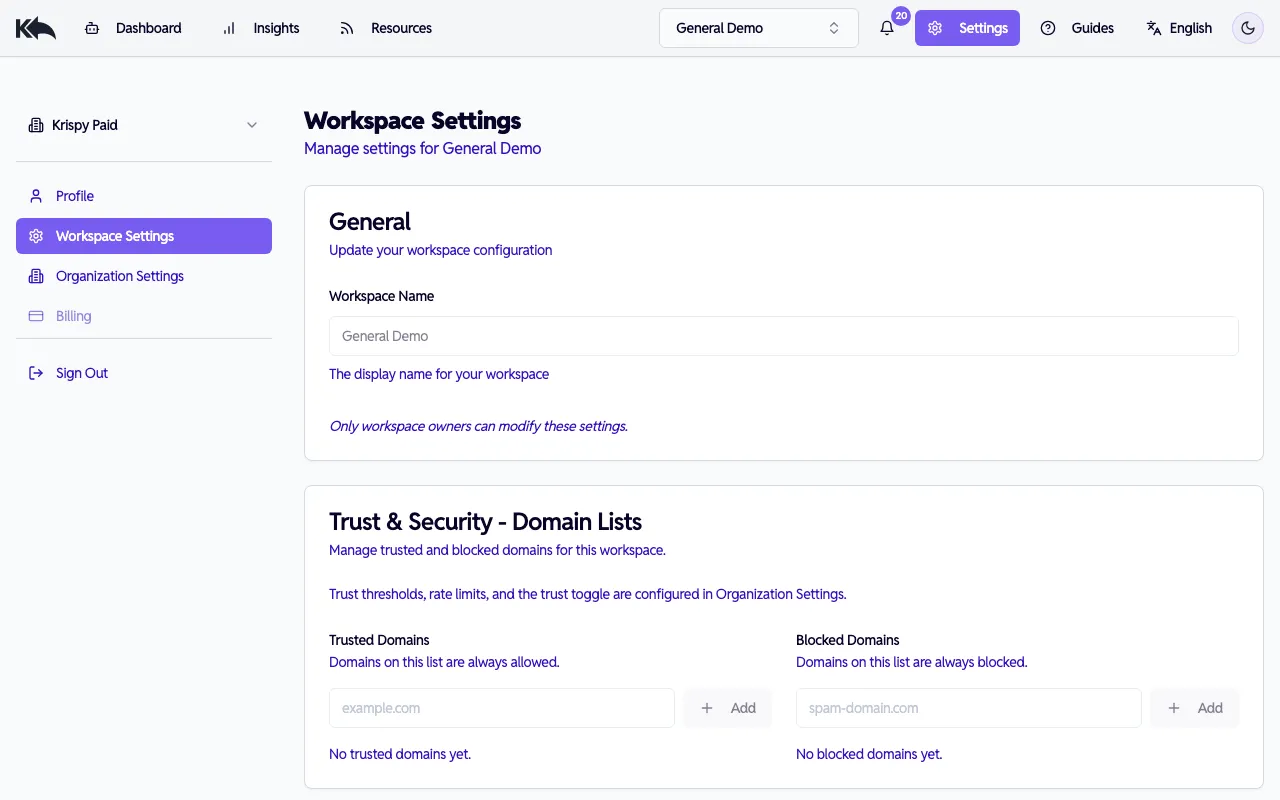
- Go to Settings > Workspace Settings > Team Members
- Click Invite Member
- Enter the email address and choose a role (Member, Admin, or Viewer)
- They receive an invitation to join
Each member signs in with their own credentials and can enable their own 2FA. Pending invitations appear in a separate section where you can copy the invite link or cancel the invitation.
Security features
Section titled “Security features”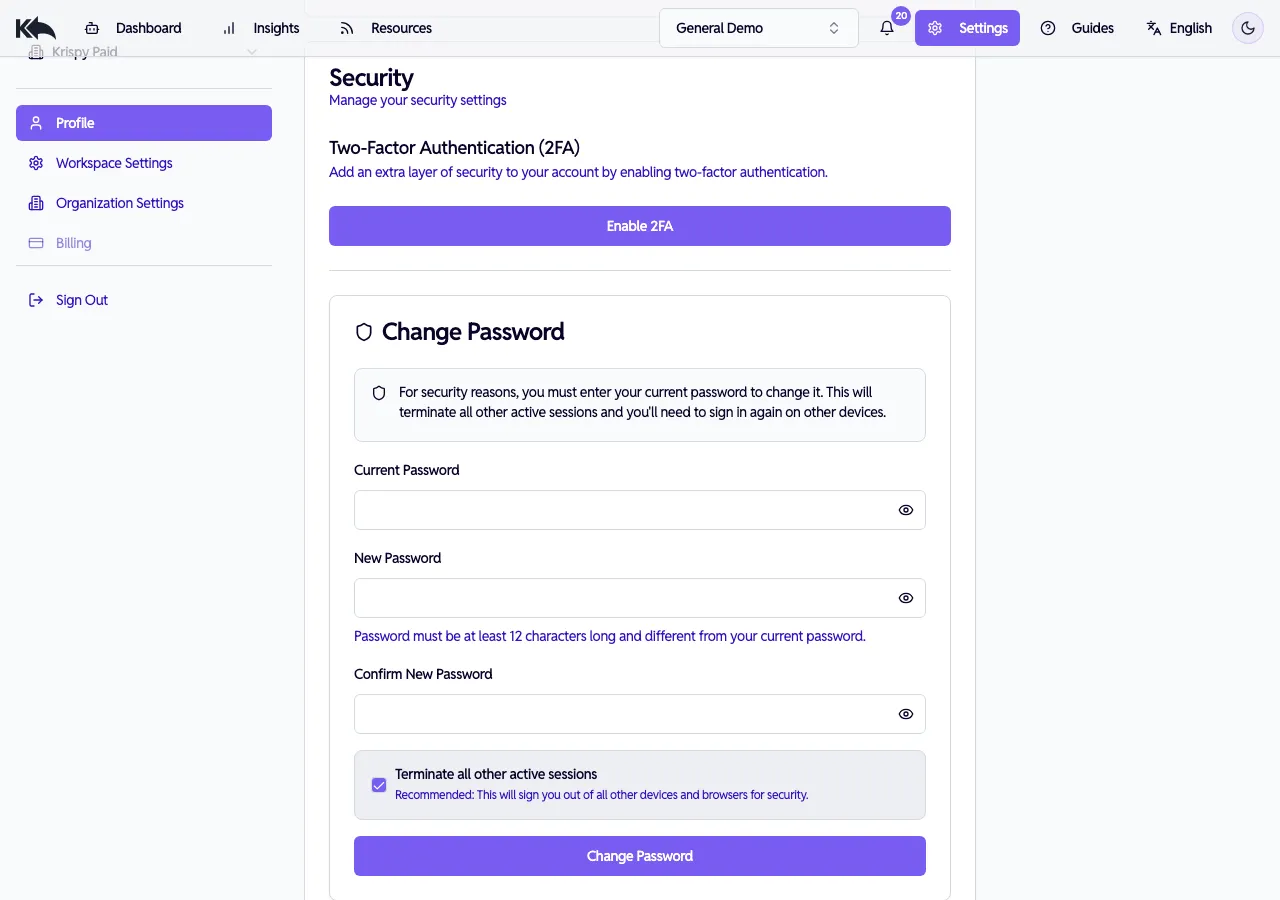
Two-factor authentication (2FA)
Section titled “Two-factor authentication (2FA)”Enable from Settings > Profile > Security:
- Click Enable 2FA
- Scan the QR code with your authenticator app (Google Authenticator, Authy, 1Password)
- Enter the 6-digit verification code
- 2FA is now active on your account
Change password
Section titled “Change password”From the same Security section:
- Enter your current password
- Enter and confirm your new password (minimum 12 characters)
- Optionally enable Terminate all other active sessions to sign out all other devices
- Click Change Password
Data encryption
Section titled “Data encryption”- All data encrypted in transit (TLS 1.2+)
- Data encrypted at rest (AES-256)
- Email content, API tokens, and OAuth credentials stored in isolated, encrypted fields
- API tokens hashed with SHA-256, instant revocation supported
GDPR compliance
Section titled “GDPR compliance”Data processed in accordance with GDPR. Request a Data Processing Agreement (DPA) from account settings. Email content is processed only to generate replies, not used for model training.
Deleting data
Section titled “Deleting data”- Delete individual agents, email connections, or knowledge base entries anytime from the dashboard
- To delete your entire workspace: Settings > Workspace Settings > Danger Zone > Delete Workspace
- Permanent deletion completes within 30 days per data retention policy