
Test Your Agent (Simulator)
Before your agent handles real customer emails, test it thoroughly. The Simulator lets you preview responses without sending real emails.
Using the Simulator
Section titled “Using the Simulator”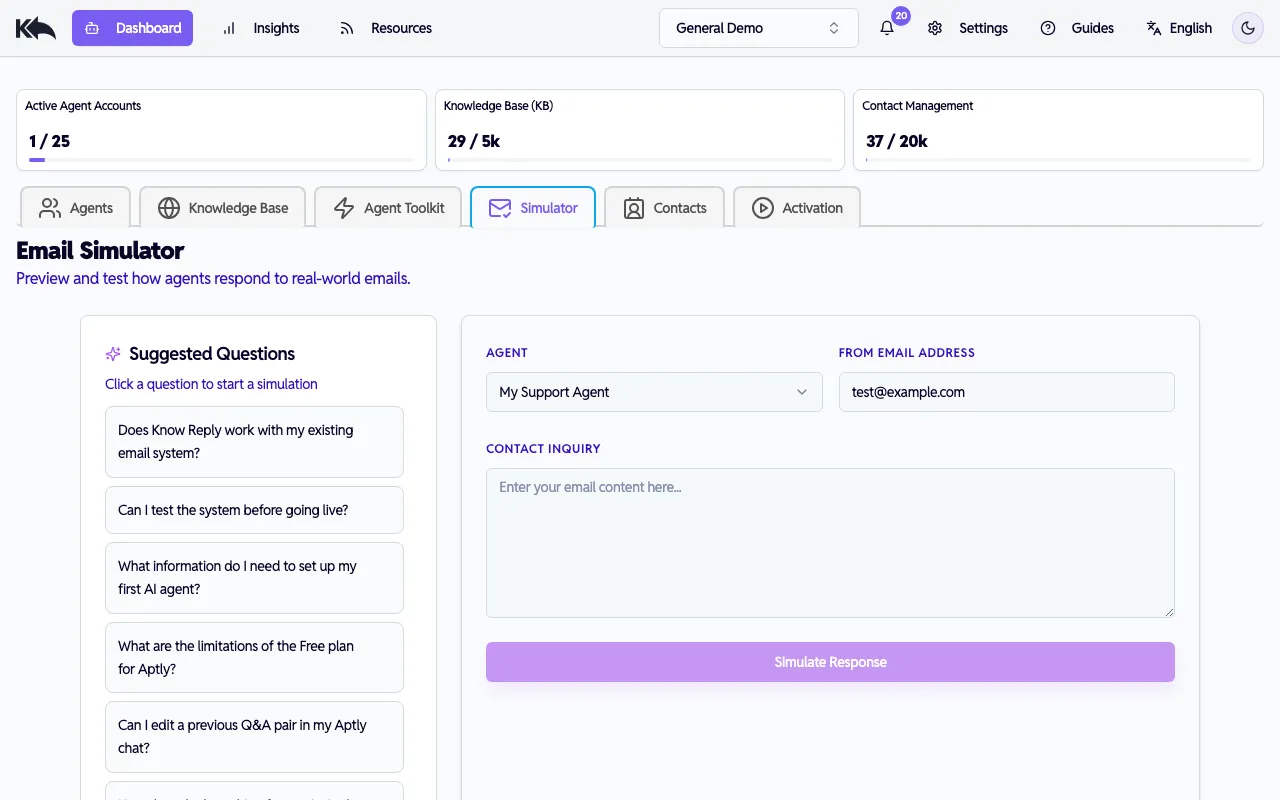
Go to Dashboard > Simulator to start testing:
- Select an agent — Choose which agent should respond from the dropdown
- Enter an email address — The “from” address for the simulated email
- Write a sample email — Compose a message as if you were a customer
- Click Simulate Response — See the AI-generated reply in real time
The Simulator also shows diagnostic info including which knowledge base content was used to generate the reply.
Suggested Questions
Section titled “Suggested Questions”The Simulator generates suggested questions based on your knowledge base content. Click any suggestion to quickly test a common scenario without typing.
What to test
Section titled “What to test”Run through these common scenarios:
- Product questions — “What sizes do you have?” “Is this in stock?”
- Policy questions — “What’s your return policy?” “How do I cancel?”
- Account questions — “Where’s my order?” “I need to update my address”
- Integration queries — “Can you check my order status?” (tests connected tools)
- Edge cases — Vague questions, complaints, requests you can’t fulfill
- Escalation triggers — Messages that should hand off to a human
Improving responses
Section titled “Improving responses”If the agent doesn’t handle something well:
- Knowledge gaps — Add more content to your knowledge base
- Tone issues — Adjust the agent’s role or special instructions in Agent Configuration
- Missing data — Connect relevant integrations so the agent can look up live information
- Wrong escalations — Review your escalation rules
Once you’re satisfied with the responses, proceed to connect your email and go live.