
Connecting Email
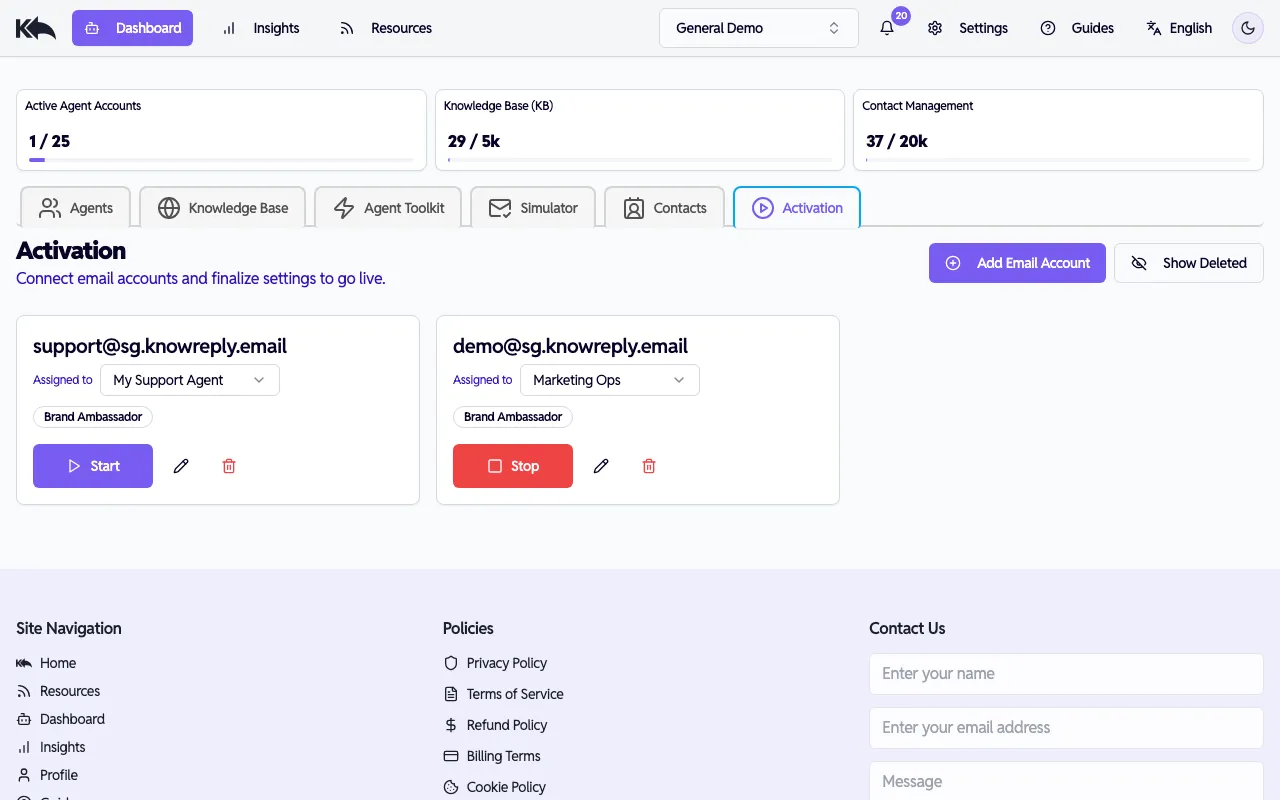
Know Reply supports multiple ways to connect an inbox. Choose the method that fits your setup.
If you would rather not hand over mailbox credentials, you can delegate a reply subdomain instead. See the reply domain guides.
Gmail (OAuth)
Section titled “Gmail (OAuth)”The recommended method for Gmail accounts. Secure, no passwords stored.
- In your agent settings, click Connect Email
- Choose Google
- Click Connect Now
- Sign in with the dedicated Google account for this agent
- Grant the requested permissions
Know Reply begins monitoring the inbox within minutes.
Microsoft 365 (OAuth)
Section titled “Microsoft 365 (OAuth)”For organizations using Outlook or Microsoft 365:
- Click Connect Email
- Choose Outlook
- Click Connect Now
- Sign in with your Microsoft work account
- An admin may need to approve the app permissions in Azure AD the first time
After consent, the agent syncs and begins processing.
IMAP / SMTP
Section titled “IMAP / SMTP”For providers that don’t support OAuth (Zoho, Fastmail, Yahoo, custom domains):
- Click Connect Email and choose SMTP/IMAP
- Fill in the connection details:
| Field | Description | Example |
|---|---|---|
| Email Address | The inbox to monitor | support@example.com |
| Username | Usually same as email | support@example.com |
| Password | Your email password, or an app password for Gmail, Yahoo, and iCloud | |
| IMAP Host | Incoming mail server | imap.gmail.com |
| IMAP Port | Usually 993 for SSL | 993 |
| SMTP Host | Outgoing mail server | smtp.gmail.com |
| SMTP Port | Usually 587 or 465 | 587 |
- Click Test Connection to verify both inbound and outbound
- Click Add Account to save
Common provider settings
Section titled “Common provider settings”| Provider | IMAP Host | SMTP Host |
|---|---|---|
| Gmail | imap.gmail.com (993) | smtp.gmail.com (465) |
| iCloud | imap.mail.me.com (993) | smtp.mail.me.com (587) |
| Zoho Mail | imap.zoho.com (993) | smtp.zoho.com (465) |
| Fastmail | imap.fastmail.com (993) | smtp.fastmail.com (465) |
| Yahoo | imap.mail.yahoo.com (993) | smtp.mail.yahoo.com (465) |
ESP Webhooks
Section titled “ESP Webhooks”If you send through an ESP like Postmark, SendGrid, or Mailgun:
- Click Connect Email and choose Webhook
- Select your provider (Postmark, SendGrid, or Mailgun)
- Enter your API key
- For Mailgun, also enter your domain
- Click Connect Now
In your ESP dashboard, set the provided webhook URL as the Inbound Webhook destination. Replies to your campaigns and transactional emails get forwarded to Know Reply automatically.
Switching connections
Section titled “Switching connections”You can disconnect and reconnect at any time. Go to the email settings, click the connection, and choose Disconnect.