
Undelivered Emails
Not every inbound email makes it through to your agent successfully. Emails can fail for technical reasons, get held by trust filters, or need manual review. The Undelivered dashboard is where you find and resolve these.
Finding undelivered emails
Section titled “Finding undelivered emails”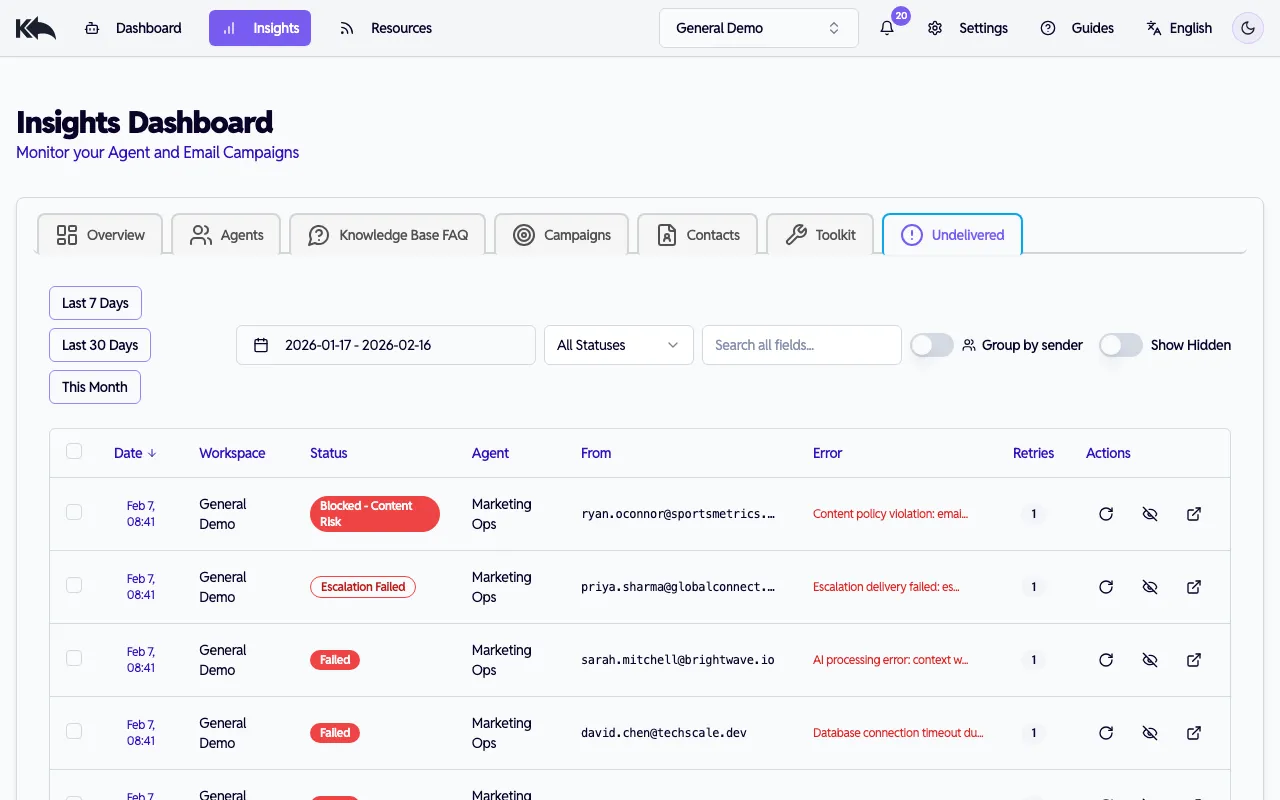
Go to Insights > Undelivered to see all emails that need attention. The dashboard includes:
- Date range presets — Last 7 Days, Last 30 Days, This Month, or custom range
- Status filter — Filter by a specific status to focus on one issue type
- Search — Search across sender address, subject, body, and error messages
- Group by sender — Collapse emails by sender to spot repeat issues
- Show Hidden — Toggle to see emails you’ve previously hidden
Email statuses
Section titled “Email statuses”Processing errors
Section titled “Processing errors”| Status | What happened | What to do |
|---|---|---|
| Failed | A temporary error occurred during AI processing | Retry — usually succeeds on the second attempt |
| Send Failed | The AI generated a reply but it failed to send | Retry to resend the reply |
| Escalation Failed | The escalation email failed to deliver | Check your fallback escalation email and retry |
Configuration issues
Section titled “Configuration issues”| Status | What happened | What to do |
|---|---|---|
| No Agent | No agent or email account matched the recipient address | Assign an email account to an agent |
| Inactive Agent | An agent was found but it’s not currently active | Activate the agent or reassign the email account |
| Reply Required | Monthly AI reply limit reached — no AI draft was generated | Write and send a manual reply using the Edit Reply tab, or upgrade your plan |
Trust & safety blocks
Section titled “Trust & safety blocks”These are covered in detail in Sender Trust & Safety:
| Status | What happened |
|---|---|
| Held - Low Trust | Trust score below the quarantine threshold — held for review |
| Blocked - Untrusted Sender | Trust score below the block threshold |
| Blocked - Rate Limited | Sender exceeded the hourly sending limit |
| Blocked - Content Risk | Sender blocked due to repeated content safety violations |
| Held - Content Risk | AI processed the email but refused to reply due to content concerns |
Email rejections
Section titled “Email rejections”| Status | What happened |
|---|---|
| Rejected (Spam) | Automatically rejected based on spam indicators in headers |
| Rejected (Bounce) | Automatically rejected as a bounce notification |
| Rejected (Auth) | Rejected due to email authentication failure (SPF/DKIM/DMARC) |
Draft review
Section titled “Draft review”| Status | What happened | What to do |
|---|---|---|
| Approval Required | AI generated a draft — waiting for your review | Review, edit, and approve. See Reply Modes |
Viewing email details
Section titled “Viewing email details”Click any email row to open the detail modal:
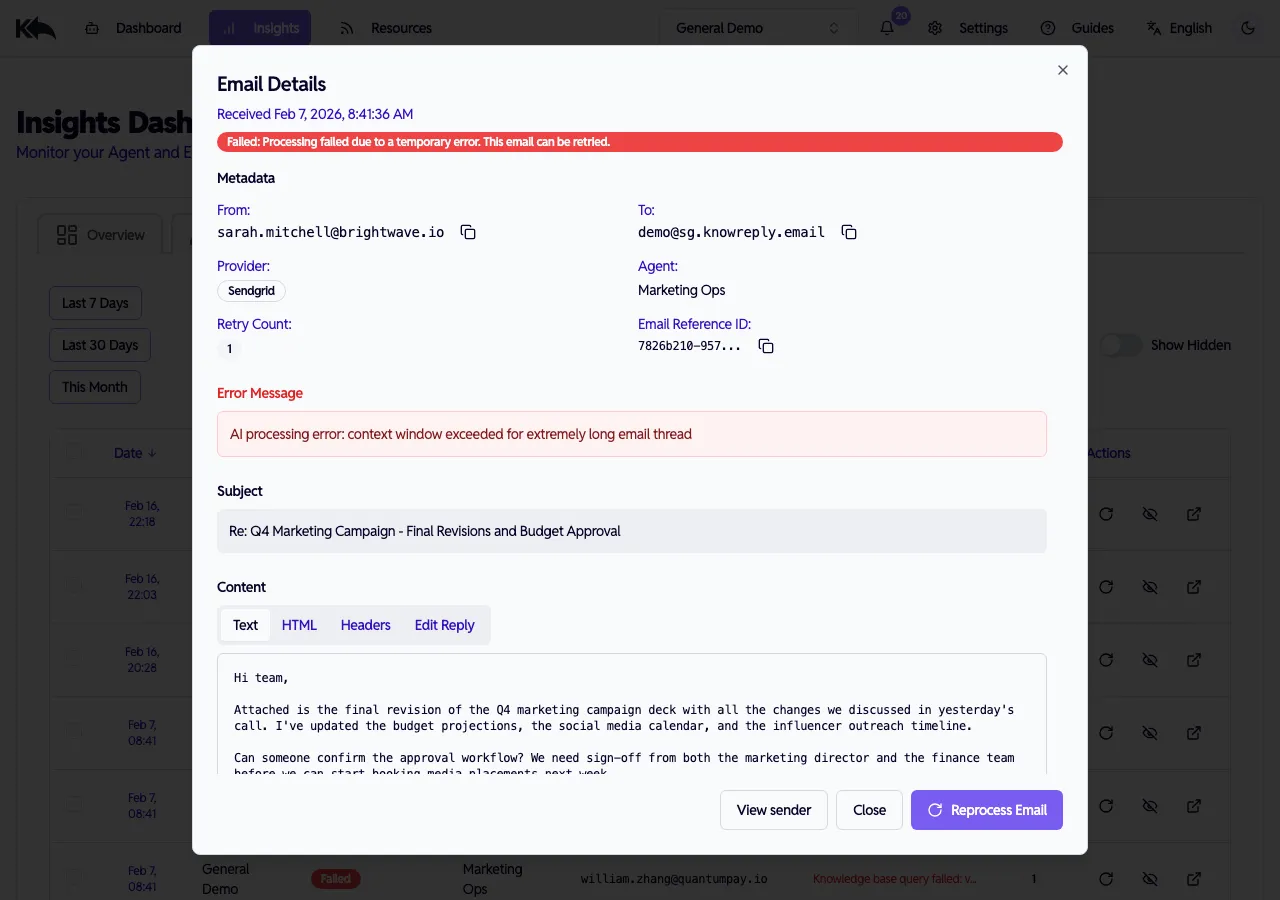
The modal shows:
- Status banner — Color-coded explanation of what happened and what you can do
- Metadata — Sender, recipient, provider, agent, retry count, and reference ID
- Error message — The specific error that prevented delivery (for failed emails)
- Subject and content — The original email in Text, HTML, and Headers tabs
- Edit Reply tab — A rich text editor for composing or editing a reply
Taking action
Section titled “Taking action”Click the retry icon in the Actions column or the Reprocess Email button in the detail modal. The email is re-queued for processing. This is the right action for:
- Failed emails (temporary errors)
- Send Failed emails (reply exists but wasn’t sent)
- Escalation Failed emails (after fixing the escalation address)
Write and send a manual reply
Section titled “Write and send a manual reply”For emails where the AI couldn’t generate a reply (limit exceeded, content issues, trust blocks), open the detail modal and use the Edit Reply tab to write your own response:
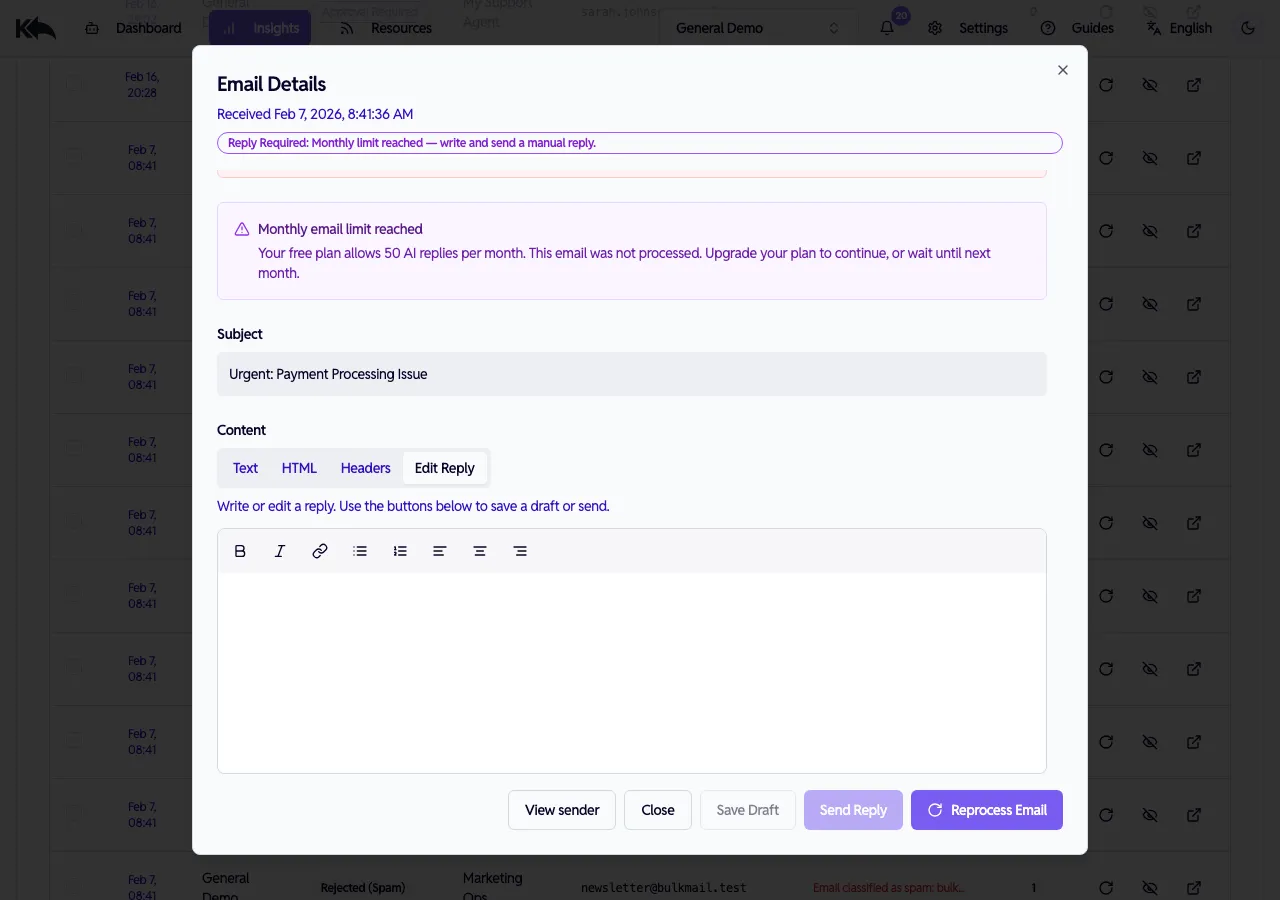
- Click the email to open the detail modal
- Switch to the Edit Reply tab
- Write your reply in the editor
- Click Save Draft to save, or Send Reply to send immediately
Click the hide icon to remove an email from the default view without deleting it. Hidden emails can be shown again by toggling Show Hidden. Use this to clean up noise from emails you’ve reviewed but don’t need to act on.
Delete
Section titled “Delete”Select one or more emails using the checkboxes and click Delete Selected to permanently remove them. This cannot be undone.
View sender
Section titled “View sender”Click View sender in the detail modal to navigate to the sender’s contact profile in Insights > Customers, where you can see their full history, trust status, and manage blocks.
Grouped sender view
Section titled “Grouped sender view”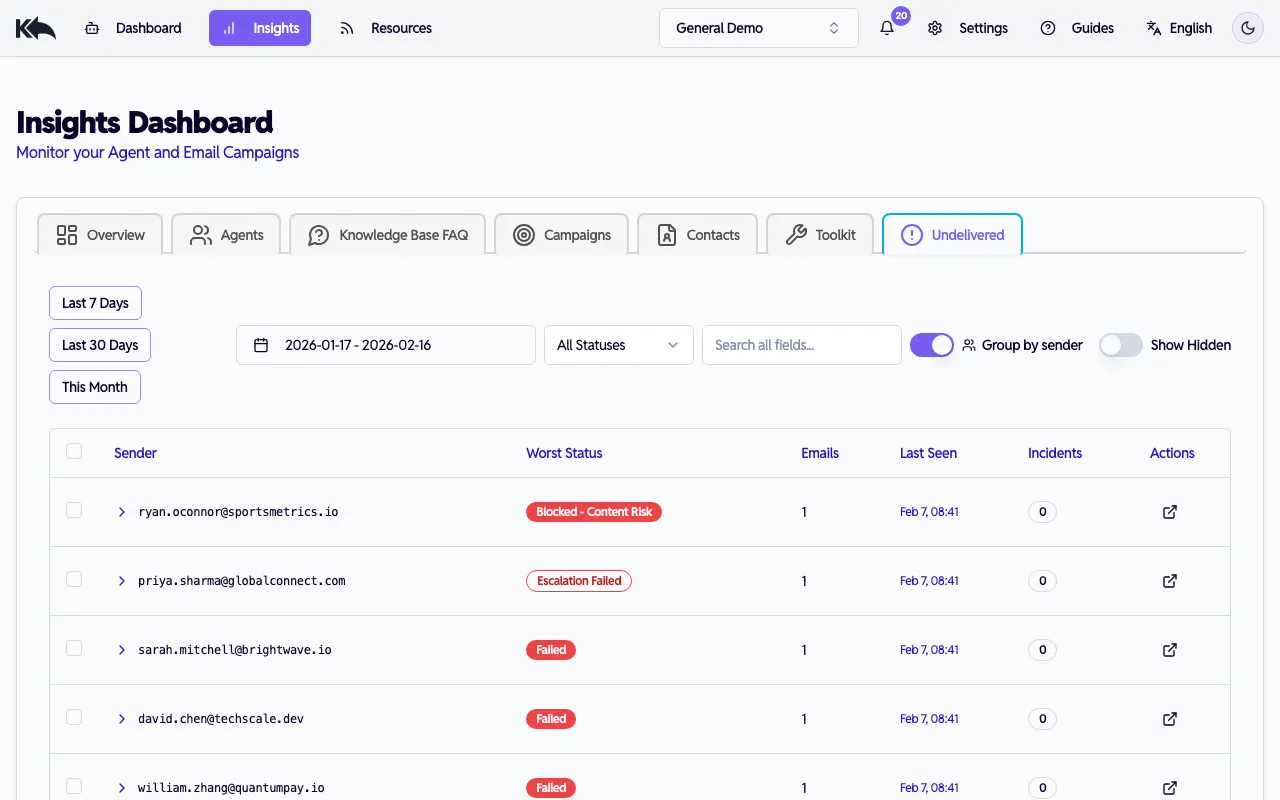
Toggle Group by sender to collapse emails by sender address. Each group shows:
- The sender’s email address
- The worst status across all their emails
- Total incident count
- Expand to see individual emails
This is useful for identifying repeat senders with delivery issues and deciding whether to block, retry, or investigate further. Click a sender’s email address to go to their contact profile.