
Contact Management
Give your agents the full picture. Connect your email marketing platform so Know Reply can access contact history, campaign context, and handle unsubscribes automatically.
Overview
Section titled “Overview”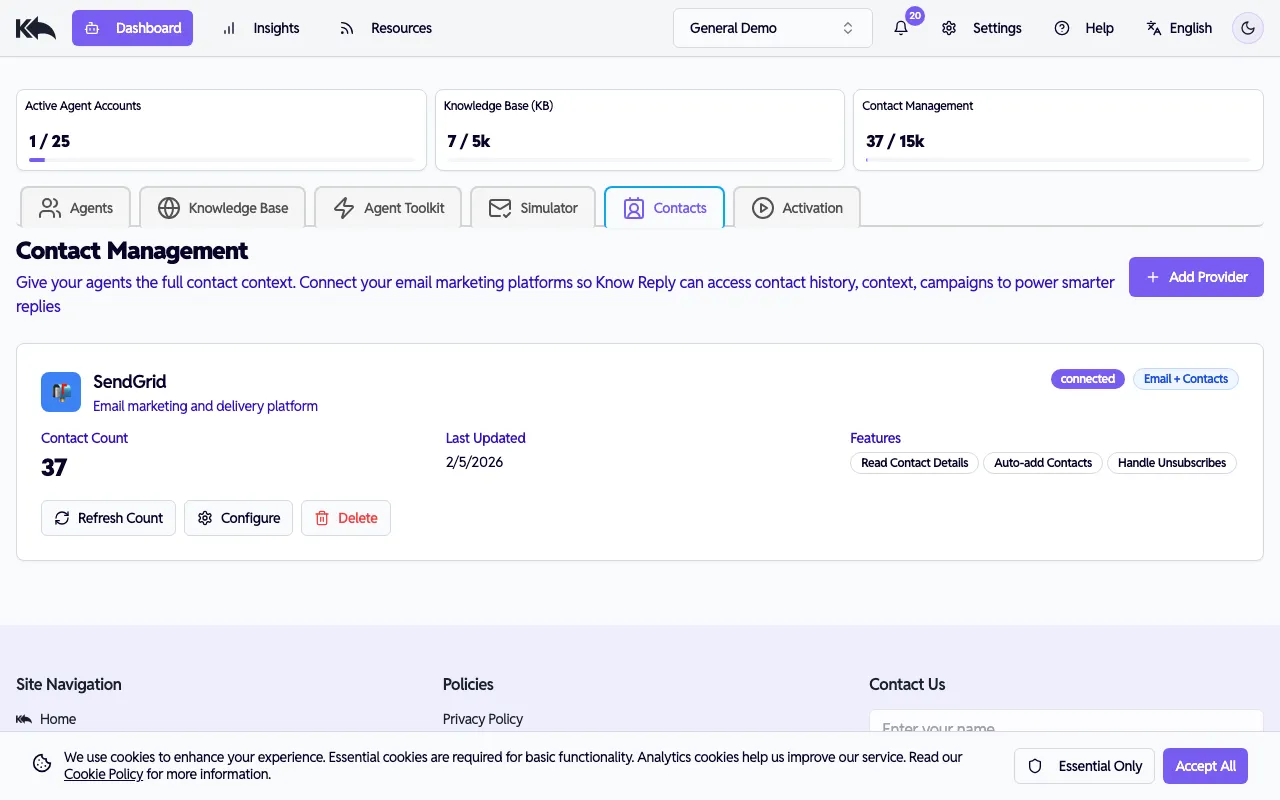
The Contacts tab in your Dashboard connects Know Reply to your email service provider (ESP). Once connected, your agent can:
- Read contact details — Access names, tags, segments, and engagement history
- Auto-add contacts — Automatically add new senders to your ESP when they email your agent
- Handle unsubscribes — Process unsubscribe requests and update your ESP lists automatically
Connecting a provider
Section titled “Connecting a provider”- Go to Dashboard > Contacts
- Click Add Provider
- Select your ESP (SendGrid, Postmark, Mailgun, Klaviyo, Mailchimp)
- Enter your API key and authorize the connection
- Once connected, you’ll see your contact count and available features
Supported providers
Section titled “Supported providers”| Provider | Read Contacts | Auto-add | Unsubscribes |
|---|---|---|---|
| SendGrid | Yes | Yes | Yes |
| Postmark | Yes | Yes | Yes |
| Mailgun | Yes | Yes | Yes |
| Klaviyo | Yes | Yes | Yes |
| Mailchimp | Yes | Yes | Yes |
Features
Section titled “Features”Read Contact Details
Section titled “Read Contact Details”When enabled, your agent can look up who’s emailing and use their profile data (name, location, purchase history, tags) to personalize responses. This gives the agent context about the sender’s relationship with your brand.
Auto-add Contacts
Section titled “Auto-add Contacts”New senders are automatically added to your ESP’s contact list. This ensures your marketing lists stay up to date as new people reach out through your agent’s inbox.
Handle Unsubscribes
Section titled “Handle Unsubscribes”When a contact asks to unsubscribe, the agent can process the request directly in your ESP — removing them from the appropriate lists without manual intervention. The agent confirms the action to the sender.
Configuring a provider
Section titled “Configuring a provider”Click Configure on a connected provider to adjust:
- Which features are enabled (Read, Auto-add, Unsubscribes)
- Default list or segment for new contacts
- Sync frequency
Refreshing contacts
Section titled “Refreshing contacts”Click Refresh Count to re-sync your contact count from the ESP. This is useful after bulk imports or list cleanups.
Viewing contacts
Section titled “Viewing contacts”To see individual contact profiles, engagement history, and sentiment data, go to Insights > Contacts. See Analytics & Insights for details.
Disconnecting a provider
Section titled “Disconnecting a provider”Click Delete on the provider card to disconnect. Your contacts remain in the ESP — only the connection to Know Reply is removed. The agent will no longer be able to look up contact details or process unsubscribes automatically.