
Equipo y permisos
Know Reply usa una jerarquía de dos niveles: Organizations contienen Workspaces. Esta guía cubre cómo gestionar acceso en ambos niveles.
Organizations y workspaces
Sección titulada «Organizations y workspaces»Organization
Sección titulada «Organization»Entidad de nivel superior donde vive la facturación. Una organization puede contener varios workspaces. Los miembros del equipo se invitan a nivel organization.
Workspace
Sección titulada «Workspace»Contenedor de trabajo donde vive todo: agentes, bases de conocimiento, cuentas de correo, integraciones, contactos y reglas de escalamiento. Los workspaces están totalmente aislados entre sí.
Qué está aislado por workspace:
- Agentes y sus configuraciones
- Contenido de base de conocimiento y embeddings
- Cuentas de correo y bandejas
- Contactos e historial de conversación
- Integraciones y conexiones de herramientas
- Reglas de escalamiento y enrutamiento
- Datos de analíticas y reportes
Nada se filtra entre workspaces: cada uno es un entorno completamente separado.
Cambiar de workspace
Sección titulada «Cambiar de workspace»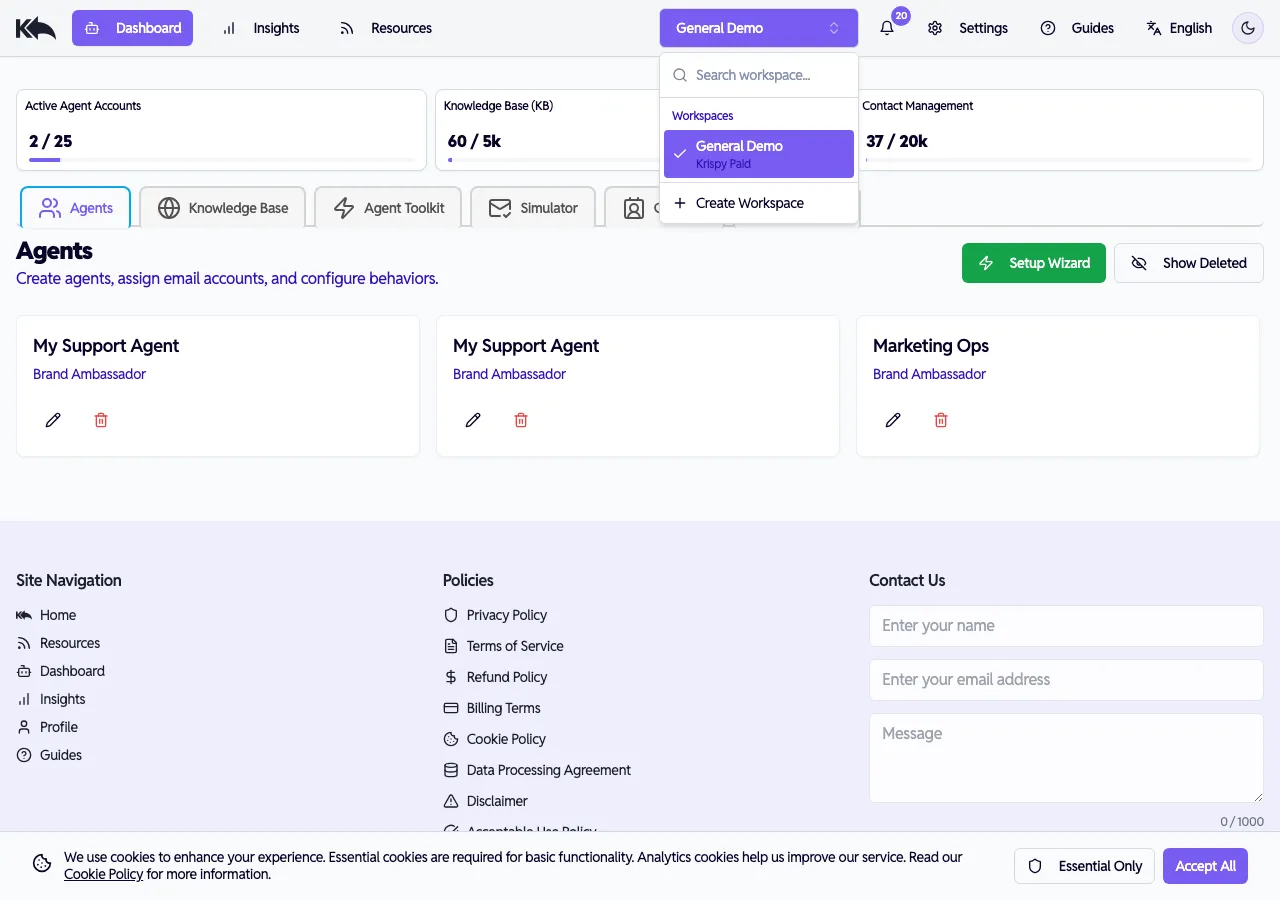
Haz clic en el nombre del workspace en el encabezado para cambiar entre workspaces. El desplegable muestra todos los workspaces de tu organization con filtro de búsqueda y opción Create Workspace.
Casos de uso:
- Agencias — Un workspace por cliente. Los datos, agentes y conocimiento de cada cliente quedan totalmente separados. Da acceso Viewer a cada cliente para que vea analíticas sin acceso a otras cuentas. Una organization, una factura.
- Empresas multi-marca — Cada marca tiene su propio workspace con agentes, tono y base de conocimiento independientes. Tu equipo puede cambiar entre workspaces desde el encabezado.
- Departamentos — Sales, support y marketing tienen cada uno su workspace con configuración adaptada y enrutamiento de escalamiento separado.
Disponibilidad de workspace por plan
Sección titulada «Disponibilidad de workspace por plan»| Plan | Workspaces | Miembros de equipo |
|---|---|---|
| Free | 1 | 1 |
| Starter | 1 | 1 |
| Pro | Multiple | Multiple |
| Premium | Multiple | Multiple |
| Enterprise | Multiple | Multiple |
Control total sobre workspace y organization:
- Gestionar facturación y suscripción
- Eliminar workspace
- Todas las capacidades de admin y member
Capacidades de gestión:
- Invitar y remover miembros del equipo
- Configurar agentes, integraciones y base de conocimiento
- Ver todas las analíticas y conversaciones
Acceso estándar:
- Ver analíticas y dashboards
- Probar agentes en el simulador
- No puede cambiar settings ni configuración
Acceso de solo lectura:
- Ver analíticas
- No puede probar agentes ni acceder a settings
Invitar miembros de equipo
Sección titulada «Invitar miembros de equipo»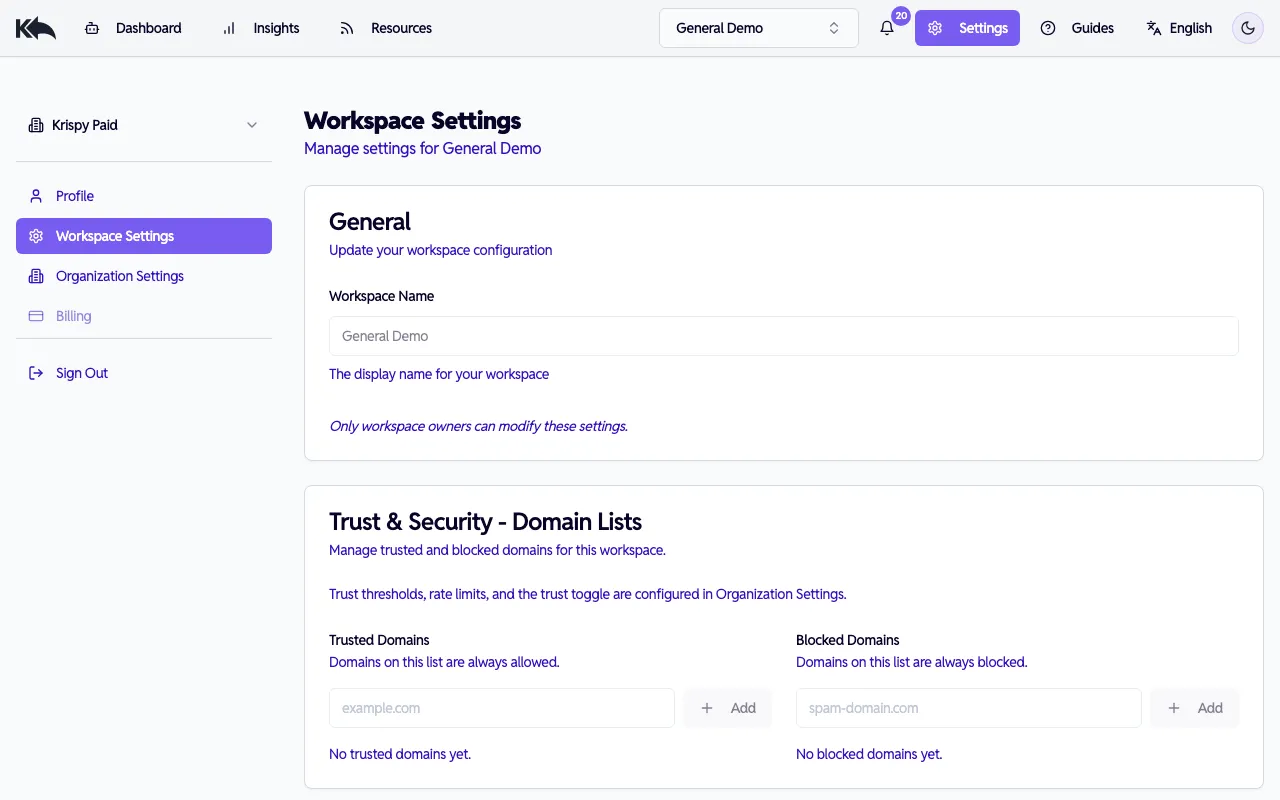
- Ve a Settings > Workspace Settings > Team Members
- Haz clic en Invite Member
- Ingresa el correo y elige rol (Member, Admin o Viewer)
- Recibirán una invitación para unirse
Cada miembro inicia sesión con sus credenciales y puede activar su propio 2FA. Las invitaciones pendientes aparecen en una sección separada donde puedes copiar el enlace o cancelarlas.
Funciones de seguridad
Sección titulada «Funciones de seguridad»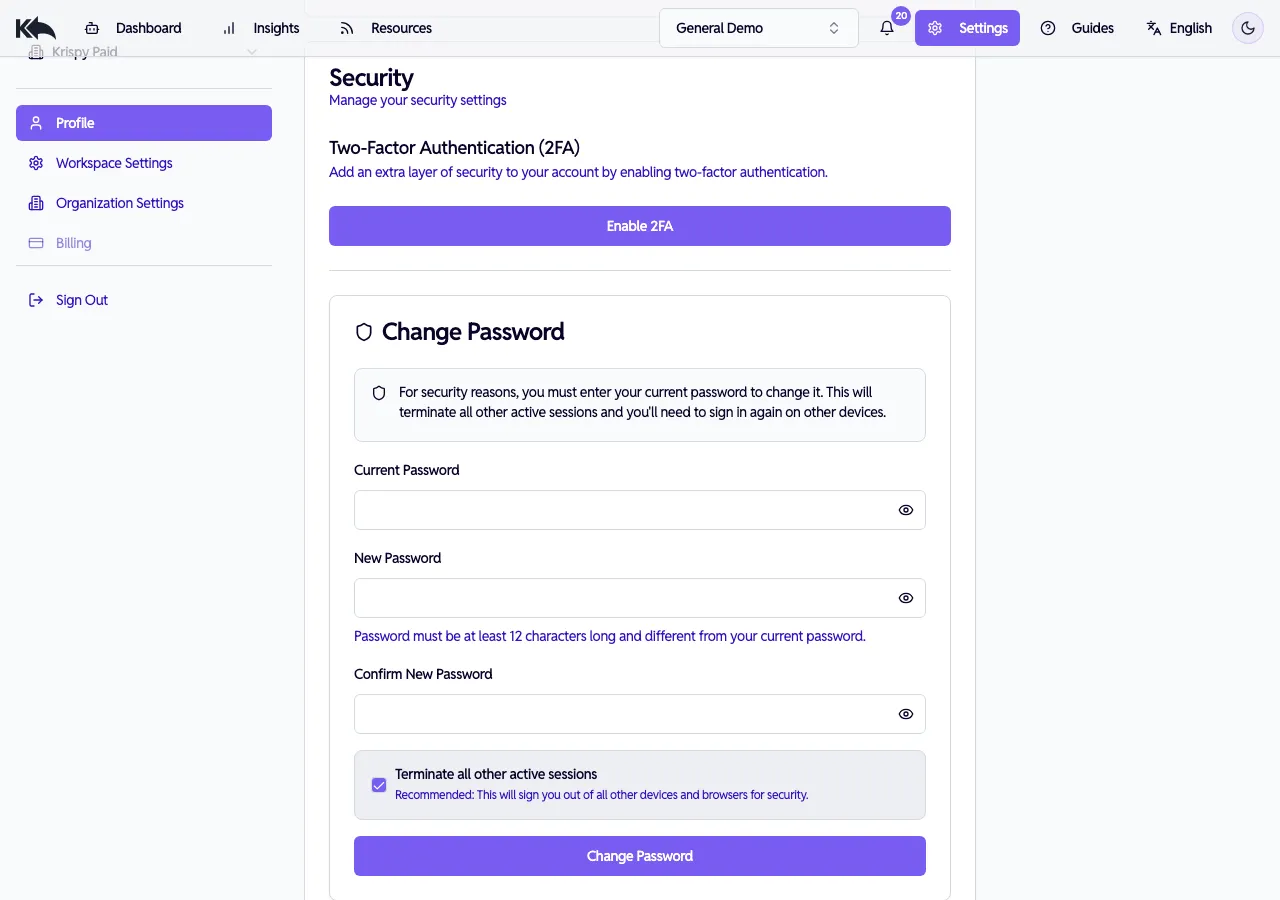
Two-factor authentication (2FA)
Sección titulada «Two-factor authentication (2FA)»Actívalo desde Settings > Profile > Security:
- Haz clic en Enable 2FA
- Escanea el código QR con tu app autenticadora (Google Authenticator, Authy, 1Password)
- Ingresa el código de verificación de 6 dígitos
- 2FA queda activo en tu cuenta
Cambiar contraseña
Sección titulada «Cambiar contraseña»Desde la misma sección Security:
- Ingresa tu contraseña actual
- Ingresa y confirma tu nueva contraseña (mínimo 12 caracteres)
- Opcionalmente activa Terminate all other active sessions para cerrar sesión en otros dispositivos
- Haz clic en Change Password
Cifrado de datos
Sección titulada «Cifrado de datos»- Todos los datos cifrados en tránsito (TLS 1.2+)
- Datos cifrados en reposo (AES-256)
- Contenido de correo, tokens API y credenciales OAuth almacenados en campos aislados y cifrados
- Tokens API hasheados con SHA-256 y revocación inmediata soportada
Cumplimiento GDPR
Sección titulada «Cumplimiento GDPR»Datos procesados conforme a GDPR. Solicita un Data Processing Agreement (DPA) desde account settings. El contenido de correo se procesa solo para generar respuestas, no para entrenamiento del modelo.
Eliminar datos
Sección titulada «Eliminar datos»- Elimina agentes, conexiones de correo o entradas de base de conocimiento en cualquier momento desde el dashboard
- Para eliminar todo el workspace: Settings > Workspace Settings > Danger Zone > Delete Workspace
- La eliminación permanente se completa en un plazo de 30 días según la política de retención